Get Cooking With AI Agents in Spreadsheets
Are you ready for Spreadsheet Day? It’s only 9 days away, on Friday, October 17th, 2025!
So, to help you get in the Spreadsheet Day mood, I’m sharing a video from Microsoft, that shows three simple examples of using AI agents in spreadsheets.
The Cozy AI Kitchen
The video takes place in Mr. Maeda’s Cozy AI Kitchen, and you can find the host, John Maeda, on LinkedIn. At Microsoft, he’s the VP Eng, Microsoft CoreAI Design & Research.
His guest is Sarah DeAtley, Senior Director of Data and Design at Microsoft, who leads us through the AI agent demos in the video. You can find Saray DeAtley on LinkedIn too.
Video Demos
In the video, there are 3 simple demos:
- Meal planning and shopping list
- Vacation activities planning
- Survey data cleaning and analysing
Sarah also shows how to create a new AI agent, to help with executive email.
Costs, Licences, Privacy
Costs & Licences: There’s no mention of AI costs or the licences required. I’d be sure to check on those items, before diving in! You wouldn’t want to accidentally run up a huge bill for these services, if you assumed they were free!
Privacy: Also, be cautious about using confidential data for any of the tests. Check the privacy settings, and data security options.
Links: Here are the links from the video description, for CalcLM:
- CalcLM on Foundry Labs: https://aka.ms/CAIK-Spreadsheets
- CalcLM: https://aka.ms/CalcLM
Video: AI Agents in Spreadsheets
Here’s the 11-minute video, with 3 AI agent demonstrations. It’s presented in a simple, understandable way, and is a good introduction to this feature.
I’ve put the transcript further down the page, if you’d like to read the contents, instead of watching the video. Of course, you could do both, if you’d like to!
Meal Planning Without AI Agents
If you’d like to do meal planning in Excel, without AI agents, go to the Excel Meal Planner page on my Contextures site.
You’ll find a few versions of my meal planners, with different features in some planners.
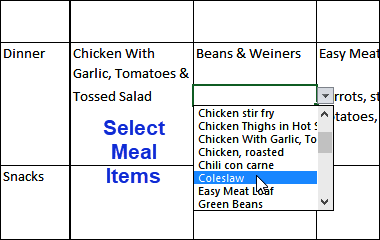
For example, in the meal planner shown below, you can choose meals for each day of the week, and print a shopping list too!
The drop-down lists make it easy to fill in the daily selections.
Meal Planner Video
To see a quick overview of how the Excel Weekly Meal Planner works, watch this short video.
Video Transcript: AI Agents Demo
Here’s the full transcript for the Microsoft AI agents video, with time stamps.
—–START TRANSCRIPT—–
[00:02] So you’re trying to make agents and you want an easier way to work with them.
[00:07] Well, we have a terrific recipe from a special expert on data and design here at the Cozy Kitchen.
[00:19] We have Chef Sarah DeAtley, Senior Director of Data and Design,
[00:24] visiting the Cozy AI Kitchen to show a very special set of tools
[00:29] she’s been product managing here at Microsoft.
[00:32] Sarah, Chef DeAtley, welcome to Cozy AI Kitchen.
[00:36] Hi, John.
[00:37] What do you think?
[00:38] I’m excited to talk about this today and all the work we’ve been doing on our tools around spreadsheets and different ways to think about agents with those.
[00:47] So you’re like a data person, design person, product person.
[00:52] How does that turn out that way? How did you do that?
[00:54] Yeah, basically I just do whatever I want and then people fit the titles around me later.
[01:00] But yeah, my background was…
[01:02] My education was in user research,
[01:05] and then I spent most of my career in data science,
[01:09] and then I moved into product management,
[01:12] and then back into data science, and then into research.
[01:15] And now being on your team,
[01:17] I work with designers really closely too.
[01:20] So I just kind of pick and choose things from my toolkit.
[01:23] Making of a great all-purpose chef.
[01:26] Well, Chef DeAtley, go ahead and cook
[01:28] up what you have to show us.
[01:30] Great.
[01:31] So one of the things that spreadsheets are not very good at is dealing with text data.
[01:36] You end up having to do crazy things to find string matches,
[01:42] and a lot of times it’s easier to do it in Python,
[01:44] but having AI now makes it something you can easily handle in a spreadsheet.
[01:48] So let’s talk about this tool and really the audience for it is people who want to go a little bit further than just what you could do in Copilot in spreadsheets or people who want an IDE that’s basically embedded within a spreadsheet. So
[02:08] our tool here and just keep in mind we are not resourced the same way as other products so recommend reading the documentation to learn exactly how it works and what is a little bit different about our spreadsheet.
[02:22] So the first thing you’ll do is connect to GPT 4.1 to start so let me copy over here.
[02:29] my endpoint and API key.
[02:33] And that’s because we found that GPT 4.1 just works really well with this tool.
[02:39] You can switch to other models later if you want to.
[02:44] So immediately, we’re ready to go. Yeah.
[02:47] Yay! We’re good to go.
[02:50] So first let me orient you to what you’re seeing here.
[02:54] It looks like a spreadsheet obviously, but
[02:57] there are some key differences.
[03:00] So in the formula bar here,
[03:01] notice that you can just use the command
[03:05] AI to give a prompt to the model directly.
[03:09] You can also call an agent here.
[03:12] You could put agents in here?
[03:13] Yes. And I will show you how we do that.
[03:16] At the top, you can generate data.
[03:19] We’ll take a look at that.
[03:20] You can see some samples we’ve preloaded for you.
[03:24] You can create agents and you can also easily
[03:28] export anything here and share it with others.
[03:30] And share it.
[03:31] Yes. Very key when you’re working with
[03:34] data. So what’s preloaded here is kind of meal planning information, and we can see that they
[03:42] already preloaded some agents for us. So the first agent is RecipeGen, and that’s creating
[03:50] dinner recipes for you. The second agent is ShopList, and that’s going to tell you what
[03:55] to shop for. So if I click
[03:58] here in an example formula,
[04:01] we can see in the details pane, it shows us
[04:04] how are we talking to this agent?
[04:07] So an example formula here is calling the agent
[04:09] at RecipeGen, then it’s saying
[04:12] create five dinner recipes using
[04:15] And then in the curly braces you reference,
[04:18] here’s the data I want you to do something with.
[04:20] That’s like using a spreadsheet.
[04:21] You could do the range like that.
[04:23] Exactly.
[04:23] So it makes it really easy.
[04:26] And then in the details we can see,
[04:27] it’s given me a bunch of recipes I can use.
[04:32] But let’s say I’m like,
[04:34] I don’t want to cook dinner five nights in a row.
[04:36] I don’t have time for that.
[04:37] So let’s say three dinner,
[04:41] and three lunch.
[04:43] Whoa.
[04:44] And immediately we’re rerunning the model.
[04:47] Our agent is doing its thing.
[04:49] And we’ll see it populate here in the value area what it looks like when it’s not just dinner.
[04:59] So an agent is kind of like a function, basically.
[05:01] Yeah, you can think of it as like…
[05:04] a model you’ve given a task to and it can do different things and they can talk to each other as well.
[05:09] So now we’ve got dinner recipes as well as lunch recipes.
[05:14] But let’s say I’m like, I don’t care about any of this.
[05:17] What about a scenario that matters to me?
[05:19] So you can also just use natural language to do this.
[05:23] So I’m taking a vacation to Hawaii in a month and a half.
[05:27] And I’m like, hey, help me.
[05:29] Pick daily activities for a 10-day vacation to the big island of Hawaii.
[05:43] And you aren’t coding at all.
[05:45] You’re just…
[05:46] No, this is just…
[05:47] Spreadsheet.
[05:47] And notice, too, that you don’t need very complicated prompts here.
[05:53] to do this, like you can keep it pretty short and GPT 4.1 is very good at filling in the gaps.
[06:02] So while we’re waiting for that to generate, what it’s going to do in the background is generate both the data set as well as some agents for us.
[06:11] So again, I don’t have to define it. I can just get started super quickly.
[06:15] It’s like a Cuisinart sort of.
[06:16] Yes.
[06:17] And then…
[06:18] So it’s already created by day.
[06:21] Here’s what I can do.
[06:22] I can go for a beach walk.
[06:25] Here’s where I would do it.
[06:26] Here’s how long it’ll take and here’s how much it will cost.
[06:29] Interesting.
[06:29] And then we can see with agents.
[06:31] We have three agents there.
[06:32] It’s created for me, Budget.
[06:35] So I could say like, hey, Budget agent,
[06:37] I don’t want to spend more than like,
[06:39] $50 on any given activity.
[06:41] There’s the Adventure agent,
[06:43] which is going to tell me everything
[06:45] that’s a very adventurous activity.
[06:47] And there’s the Relaxation agent
[06:49] who’s like, we need to balance out
[06:51] the Adventure agent here.
[06:52] I can’t just be adventuring.
[06:53] And you can tweak the prompts there too.
[06:55] Exactly.
[06:56] So I could say for adventure,
[06:58] I’m open to anything except for horseback riding.
[07:01] We don’t need to get into why.
[07:03] But that’s something that I would probably add in here.
[07:06] Uh-huh.
[07:06] And then one last example I’ll show.
[07:09] So these are kind of personal productivity things that show just how you can add in the power of agents into a spreadsheet and easily manipulate it.
[07:19] But what about a work example?
[07:22] So if I switch to the data pipeline sample, it’s a little bit different and explains…
[07:30] here that you could upload data,
[07:34] one agent will then clean the data,
[07:36] the next agent will then analyze it,
[07:39] and a common thing that,
[07:41] and data science or analysis,
[07:45] that you’ll deal with is survey data in Excel,
[07:49] because Excel is really terrible at looking at string matches
[07:53] and cleaning things that are much easier in Python.
[07:56] So I have a pre-created messy survey data set
[08:00] that’s not aligned in its formatting or anything.
[08:05] And as soon as I upload it,
[08:06] It’s already cleaned things for me.
[08:09] So it’s like a Python notebook or something for data scientists.
[08:13] Exactly.
[08:14] And so now I can see that it’s cleaned it and it shows me how,
[08:17] which is really critical because if I was handing this off to like another analyst,
[08:22] I would want to check their work, see what they did.
[08:25] And then I can see the analysis that the second agent did.
[08:29] And we can see at the bottom,
[08:32] And the details, it lists the dependencies.
[08:34] So you can confirm this is the cell it looked at to do this analysis.
[08:39] But let’s try adding another agent here.
[08:45] So I actually want a third agent that we’ll call Trish,
[08:51] who’s our communications expert on business results for execs.
[09:00] Well, there’s no code required here.
[09:03] Correct.
[09:04] You do want to make sure you follow a bit of the instructions here in the template, but for me it’s just easiest to take an existing template that we have with another agent and just modify that.
[09:17] So I’ve created Trish, our agent here, and the nice thing about this is like you can just go back and forth really easily between
[09:26] real content and data that you’re putting in.
[09:30] And then if you press the equal sign,
[09:32] you automatically start to see the different commands
[09:35] you can interact with.
[09:37] You can send it to Trish.
[09:38] Yes, so we’re gonna say, hey Trish,
[09:42] create an email summarizing results
[09:50] to send to execs.
[09:54] from, and then curly brace, C2.
[10:01] So we’ll let that process.
[10:04] And I think this is a really great example because for
[10:08] put too many years of my career in science.
[10:11] Wow, emails right there.
[10:13] Every week you’re having to like take a data set,
[10:16] look at if the results were different,
[10:18] create an email, analyze the email
[10:20] to make sure it’s exec friendly and there’s no mistakes.
[10:23] This probably would have taken me one to two hours every week
[10:27] when I was doing this type of work in the past.
[10:29] I just did this all in like a minute basically.
[10:32] basically. So like every person who’s working with spreadsheets needs to get
[10:38] this tool in their hands to speed up the work they’re doing to get beyond just
[10:44] the way some Copilots work today where all it helps you do is like debug
[10:48] errors in spreadsheets. Well you know Sarah as a senior leader in AI product
[10:54] design and data do you have any advice for people out there in their careers
[10:59] looking to become like you?
[11:01] I would just say always be on the side of early adoption, even if you have mixed feelings about how AI can have a place in data work today or design work or whatever.
[11:14] Like you still should understand the tools and the limitations of them, and then you can understand how to manipulate it to work for what you need.
[11:22] It’s no different than picking up any other new tool
[11:26] and you always would have needed to check your work with data anyway.
[11:29] This is just something to make it faster
[11:31] and save your time on the really important tasks.
[11:34] Well, thank you, Chef DeAtley for this very cool meal.
[11:37] Everyone, stay tuned for more recipes like this.
[11:40] Thank you.
—–END TRANSCRIPT—–
____________________________
Get Cooking With AI Agents in Spreadsheets